> For the complete documentation index, see [llms.txt](https://help.bioinsight.illumina.com/llms.txt). Markdown versions of documentation pages are available by appending `.md` to page URLs; this page is available as [Markdown](https://help.bioinsight.illumina.com/illumina-trupath-genome/run-analysis-setup/ica-analysis.md).
# Platform Core Analysis
This section describes the steps required to execute the DRAGEN Germline for TruPath analysis via Illumina BioInsight Platform Core (previously ICA).
### Link Bundles
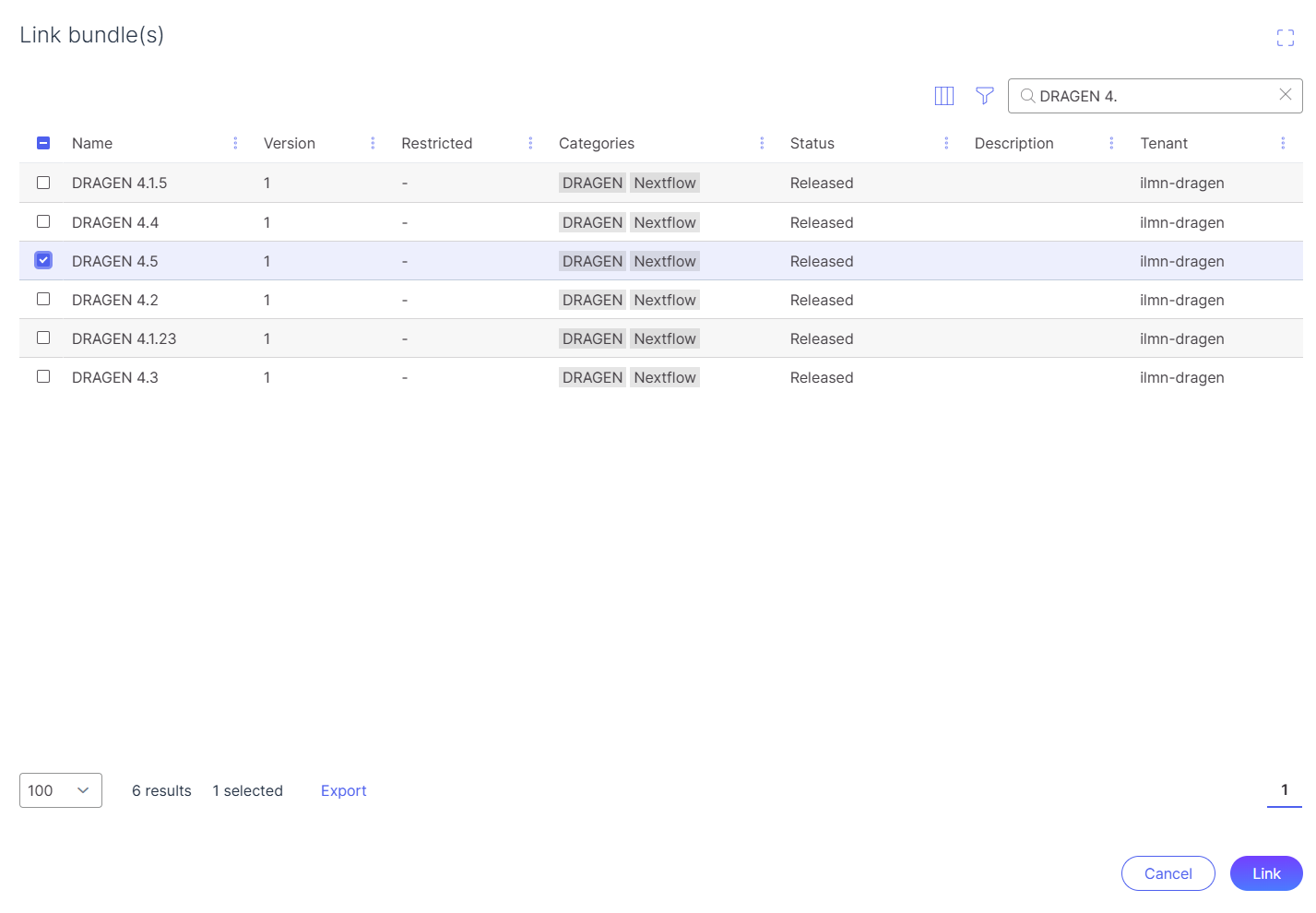
1. Link the latest DRAGEN bundle (DRAGEN 4.5 shown below) in Platform Core to your project of interest.
2. See Platform Core reference pages for more details on [adding bundles](https://help.ica.illumina.com/home/h-bundles).
3. See Platform Core reference pages for more details on [uploading data](https://help.ica.illumina.com/project/p-data).
### Executing DRAGEN Germline Analysis
**WARNING**: Deviation from these instructions (including adding additional options) may cause pipeline failure.
1. Select the DRAGEN\_Germline\_Whole\_Genome Pipeline and the version of interest. Select to start analysis with that pipeline.
2. Enter the necessary run information such as user reference tags, outputs and logs folder.\
Select the necessary input files for the run, including sample inputs. .FASTQ.GZ or .FASTQ.ORA are supported inputs, optionally with an FASTQ list file. Select "Homo sapiens \[1000 Genomes] hg38 v6 Pangenome" for the reference genome.
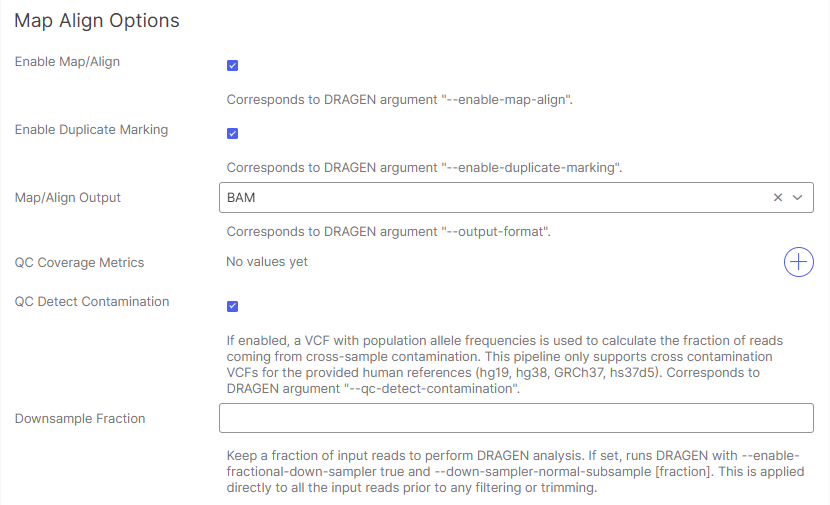
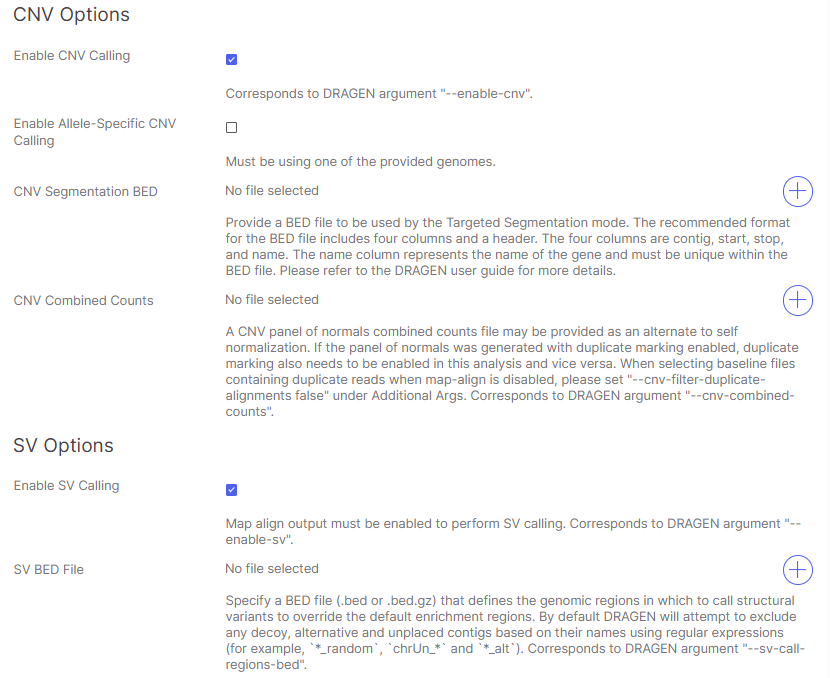
3. By **default**, Map/Align Options, Variant Calling Options, CNV Options, and SV Options **are enabled** for the pipeline and are recommended. If no Small Variant Calling, CNV or SV Calling is desired, set those options to "False" (screenshot displays the button to click; the box will disappear upon selecting "False" for those settings).
**NOTE**: SV results are turned on to improve CNV calling accuracy, but these results are not verified or supported.
4. Navigate to the **Illumina TruPath Genome Options** section of the analysis input settings.
5. By **default**, "Enable Proximity Mode" for use with Illumina TruPath Genome is check-marked and enabled. **NOTE:** This option must be enabled in order to analyze TruPath data.
6. (Optional): To output an additional Hi-C output file for visualization, checkmark the option for "Enable Illumina TruPath Visualization"
7. (Optional): To turn on Multi-Region Joint Detection (MRJD) Calling, checkmark the option for "Enable running Illumina TruPath MRJD." Please refer to the DRAGEN User Guide for more information on Multi-Region Joint Detection.
8. Confirm configured settings. Start the analysis upon configuring all analysis settings.
### Visualizations in Platform Core
Upon successful completion of the DRAGEN Germline pipeline with Illumina TruPath Genome enabled, a separate tab called "Genome Viewer" will appear in the analysis landing page.\
Navigate to [Visualize Data in Genome Viewer](/illumina-trupath-genome/data-visualizations-and-analysis/visualize-data-in-platform-core.md) after analysis completes.
---
# Agent Instructions
This documentation is published with GitBook. GitBook is the documentation platform designed so that both humans and AI agents can read, navigate, and reason over technical content effectively. Learn more at gitbook.com.
## Querying This Documentation
If you need additional information that is not directly available in this page, you can query the documentation by asking a question.
Perform an HTTP GET request on the following URL with the `ask` and `goal` query parameters:
```
GET https://help.bioinsight.illumina.com/illumina-trupath-genome/run-analysis-setup/ica-analysis.md?ask=&goal=
```
`ask` is the immediate question: it should be specific, self-contained, and written in natural language.
`goal` is what the user is ultimately trying to achieve, the reason they need the answer. Sharing it helps GitBook give you a better, more relevant answer. A goal is most helpful when it describes the outcome the user wants rather than restating the question. For example, with `ask=how do I create an API token`, a goal like `automate deployments from our CI pipeline` lets GitBook tailor the answer to that use case.
The response will contain a direct answer to the question and relevant excerpts and sources from the documentation.
Use this mechanism when the answer is not explicitly present in the current page, you need clarification or additional context, or you want to retrieve related documentation sections.
.png?alt=media)
.png?alt=media)

.png?alt=media)

.png?alt=media)
.png?alt=media)

.png?alt=media)
.png?alt=media)