> For the complete documentation index, see [llms.txt](https://help.bioinsight.illumina.com/llms.txt). Markdown versions of documentation pages are available by appending `.md` to page URLs; this page is available as [Markdown](https://help.bioinsight.illumina.com/icm/analyses/analysis-functionality/task-menu/smart-suggestions.md).

# Smart suggestions

Provides AI-powered recommendations for the next analysis step based on your current data.

{% hint style="warning" %}
AI-generated content may be inaccurate.
{% endhint %}

## How Smart suggestions are generated

The Smart suggestions tool relies on a database of thousands of historical datasets. Once a node has been selected, the tool will determine the three most probable next steps in order of likelihood. It also provides an rationale for each choice to inform the user on how to proceed with their analysis.

Learn more about [AI-guided exploration in Connected Multiomics](https://developer.illumina.com/news-updates/bringing-ai-guided-exploration-to-multiomics-analysis).

## Generating an AI-guided analysis

* Click on a result node (circle) to open the task menu and click <img src="https://580316046-files.gitbook.io/~/files/v0/b/gitbook-x-prod.appspot.com/o/spaces%2FWMxqQAMFOJtu98OBk9KN%2Fuploads%2Fgit-blob-fea4d4f2a09420cd4f4e21290bc78d494cd61a39%2Fimage%20(555).png?alt=media" alt="" data-size="line">

<figure><img src="https://580316046-files.gitbook.io/~/files/v0/b/gitbook-x-prod.appspot.com/o/spaces%2FWMxqQAMFOJtu98OBk9KN%2Fuploads%2Fgit-blob-162ff4a42be9f340d8c7c55c720da093edd2eda7%2Fimage%20(598).png?alt=media" alt=""><figcaption><p>The AI suggestion tool is accessible from the context-sensitive menu. Click <strong>Suggest next step</strong> to generate the suggestions.</p></figcaption></figure>

* Three suggestions will appear in the task menu and on the task graph. Each suggestion has an accompanying rationale, accessible by clicking <img src="https://580316046-files.gitbook.io/~/files/v0/b/gitbook-x-prod.appspot.com/o/spaces%2FWMxqQAMFOJtu98OBk9KN%2Fuploads%2Fgit-blob-2070d9ecd0727fcf57b810efd70b8778b1f6bae0%2Fimage%20(554).png?alt=media" alt="" data-size="line">. Once a decision on how to proceed is made, click <img src="https://580316046-files.gitbook.io/~/files/v0/b/gitbook-x-prod.appspot.com/o/spaces%2FWMxqQAMFOJtu98OBk9KN%2Fuploads%2Fgit-blob-20560d8086a284063ef50cca72f280fd8e7f80aa%2Fimage%20(552).png?alt=media" alt="" data-size="line">

<figure><img src="https://580316046-files.gitbook.io/~/files/v0/b/gitbook-x-prod.appspot.com/o/spaces%2FWMxqQAMFOJtu98OBk9KN%2Fuploads%2Fgit-blob-51bb99cd2aabcebe3b65f475b3e78ea224c20192%2Fimage%20(600).png?alt=media" alt=""><figcaption><p>After clicking <strong>Suggest next step</strong> the tool provides three potential next steps in order of likelihood. The nodes suggested will appear on the task graph. Select <strong>Accept</strong> for one of the suggested tasks or click <strong>Dismiss suggestions</strong>. A rationale is provided for each suggested task, click <strong>Show more</strong> to read the full explanation.</p></figcaption></figure>

* Once the user clicks <img src="https://580316046-files.gitbook.io/~/files/v0/b/gitbook-x-prod.appspot.com/o/spaces%2FWMxqQAMFOJtu98OBk9KN%2Fuploads%2Fgit-blob-20560d8086a284063ef50cca72f280fd8e7f80aa%2Fimage%20(552).png?alt=media" alt="" data-size="line"> the task setup page will open. Note the disclaimer at the top of the page. Currently the AI tool does not recommend analysis-specific parameters. These remain the default set for the data type

<div align="left"><figure><img src="https://580316046-files.gitbook.io/~/files/v0/b/gitbook-x-prod.appspot.com/o/spaces%2FWMxqQAMFOJtu98OBk9KN%2Fuploads%2Fgit-blob-6f64f1b191124423356e4c9fd0929590d144ec58%2FScreenshot%202026-08-25%20145537.png?alt=media" alt=""><figcaption><p>The task setup menu opens, note the disclaimer at the top of the page.</p></figcaption></figure></div>

* Clicking <img src="https://580316046-files.gitbook.io/~/files/v0/b/gitbook-x-prod.appspot.com/o/spaces%2FWMxqQAMFOJtu98OBk9KN%2Fuploads%2Fgit-blob-a9c60a5c4f798852b479038f3d295fbc46b7c2d6%2Fimage%20(551).png?alt=media" alt="" data-size="line"> runs the task. A new node appears on the task graph

### Additional notes

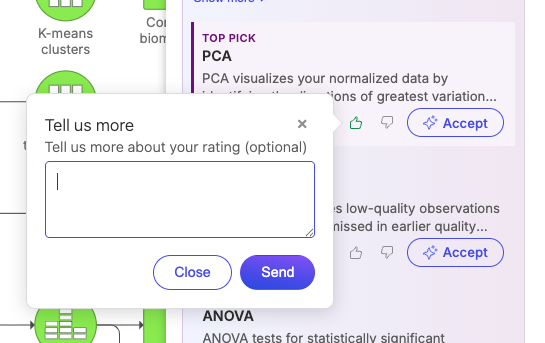
* Please provide feedback using the thumbs up/down icons. Written feedback can be provided. Clicking <img src="https://580316046-files.gitbook.io/~/files/v0/b/gitbook-x-prod.appspot.com/o/spaces%2FWMxqQAMFOJtu98OBk9KN%2Fuploads%2Fgit-blob-99f3f0c3b2a57ccd47abace4a51eee86ba351d08%2Fimage%20(550).png?alt=media" alt="" data-size="line"> will still send the thumbs up/down selection as feedback. If you don't want to share your feedback click <img src="https://580316046-files.gitbook.io/~/files/v0/b/gitbook-x-prod.appspot.com/o/spaces%2FWMxqQAMFOJtu98OBk9KN%2Fuploads%2Fgit-blob-d98295b5e69113cfd75ba651646895cccdab1a4f%2Fimage%20(549).png?alt=media" alt="" data-size="line"> in the feedback box

<div align="left"><figure><img src="https://580316046-files.gitbook.io/~/files/v0/b/gitbook-x-prod.appspot.com/o/spaces%2FWMxqQAMFOJtu98OBk9KN%2Fuploads%2Fgit-blob-7321da39c4825dad68ffe7b71184a26abc44cae2%2FAI_feedback.png?alt=media" alt=""><figcaption><p>Feedback for each task suggested by the AI tool can be provided by clicking on the thumbs up/down icons. Users are also encouraged to provide feedback using the text box</p></figcaption></figure></div>

* Clicking <img src="https://580316046-files.gitbook.io/~/files/v0/b/gitbook-x-prod.appspot.com/o/spaces%2FWMxqQAMFOJtu98OBk9KN%2Fuploads%2Fgit-blob-0a55385a1116c8ec548352775aec1acc0257fe7a%2Fimage%20(547).png?alt=media" alt="" data-size="line"> will trigger a similar feedback process
* The tool will provide a confidence score for the choices presented. This can be low, medium or high; based on the historical data. Note that a low score can indicate all the options proposed are equally valid as a subsequent step, depending on the specific analysis

<figure><img src="https://580316046-files.gitbook.io/~/files/v0/b/gitbook-x-prod.appspot.com/o/spaces%2FWMxqQAMFOJtu98OBk9KN%2Fuploads%2Fgit-blob-40482703f5596bef247e489c3d2be822a6319ba3%2Fimage%20(599).png?alt=media" alt=""><figcaption><p>Confidence score assigned to the AI suggestions</p></figcaption></figure>

AI features can be turned off by an administrator in the [Admin console](https://help.connected.illumina.com/account-management/admin-console).


---

# Agent Instructions
This documentation is published with GitBook. GitBook is the documentation platform designed so that both humans and AI agents can read, navigate, and reason over technical content effectively. Learn more at gitbook.com.

## Querying This Documentation
If you need additional information that is not directly available in this page, you can query the documentation by asking a question.

Perform an HTTP GET request on the following URL with the `ask` and `goal` query parameters:

```
GET https://help.bioinsight.illumina.com/icm/analyses/analysis-functionality/task-menu/smart-suggestions.md?ask=<question>&goal=<user_goal>
```

`ask` is the immediate question: it should be specific, self-contained, and written in natural language.
`goal` is what the user is ultimately trying to achieve, the reason they need the answer. Sharing it helps GitBook give you a better, more relevant answer. A goal is most helpful when it describes the outcome the user wants rather than restating the question. For example, with `ask=how do I create an API token`, a goal like `automate deployments from our CI pipeline` lets GitBook tailor the answer to that use case.

The response will contain a direct answer to the question and relevant excerpts and sources from the documentation.

Use this mechanism when the answer is not explicitly present in the current page, you need clarification or additional context, or you want to retrieve related documentation sections.