> For the complete documentation index, see [llms.txt](https://help.bioinsight.illumina.com/llms.txt). Markdown versions of documentation pages are available by appending `.md` to page URLs; this page is available as [Markdown](https://help.bioinsight.illumina.com/emedgene/emedgene-analyze-manual/variant-visualization/variant-visualization-tool/visualization-tracks/default-tracks.md).

# Default tracks

These [visualization tracks](/emedgene/emedgene-analyze-manual/variant-visualization/variant-visualization-tool/visualization-tracks.md) provide the core genomic context for variant review and cannot be hidden from the view in **Track Manager**.

## FASTA

The **FASTA** track displays the reference genome sequence.

<figure><img src="https://1131024994-files.gitbook.io/~/files/v0/b/gitbook-x-prod.appspot.com/o/spaces%2FGCW0DnLlE7QjoZPNmKIi%2Fuploads%2Fgit-blob-f139631ee7c77ad03e2f2eddf763e8eb78768333%2Fvisualization_section_1_fasta.png?alt=media" alt=""><figcaption><p><strong>FASTA</strong> track</p></figcaption></figure>

## RefSeq Genes

The **RefSeq Genes** track displays gene(s) and transcript(s) affected by the variant.

<figure><img src="https://1131024994-files.gitbook.io/~/files/v0/b/gitbook-x-prod.appspot.com/o/spaces%2FGCW0DnLlE7QjoZPNmKIi%2Fuploads%2Fgit-blob-5c2f3a5793efbcf426daa0d8fef8852a573b45fe%2Fvisualization_section_2_refseq.png?alt=media" alt=""><figcaption><p><strong>RefSeq Genes</strong> track</p></figcaption></figure>

## Protein domain

The **Protein domain** track uses data from UniProt GRCh38 with liftover to GRCh37.

Click a domain to open more details:

* Protein domain name
* Start and end positions
* Domain ID
* Link to UniProt

This track is available for cases created with knowledge graph version 73 or later.

<figure><img src="https://1131024994-files.gitbook.io/~/files/v0/b/gitbook-x-prod.appspot.com/o/spaces%2FGCW0DnLlE7QjoZPNmKIi%2Fuploads%2Fgit-blob-0079606383e8d119fb45729f32d26e6700117db5%2Fimage%20(47).png?alt=media" alt=""><figcaption><p><strong>Protein domain</strong> track</p></figcaption></figure>

## Test Subject VCF

The **Test Subject VCF** track shows the proband variants stored in the input VCF.

Use it to review nearby variants, including MNVs and large CNVs.

Click a variant position to open a popup with the variant details.

<figure><img src="https://1131024994-files.gitbook.io/~/files/v0/b/gitbook-x-prod.appspot.com/o/spaces%2FGCW0DnLlE7QjoZPNmKIi%2Fuploads%2Fgit-blob-83fb153c2922bd181353e8c4c18a5ab5428cf2de%2Fvisualization_section_3_test_subject_vcf_2.png?alt=media" alt=""><figcaption><p><strong>Test Subject VCF</strong> track</p></figcaption></figure>

## Test Subject BAM

The **Test Subject BAM** track shows BAM or CRAM read alignment for the proband. Use this track to review read support for variants in the genomic context of the case.

In v100.40 and later, the **Test Subject BAM** track supports two views:

* **Standard view**: Shows read alignment without phasing information. This is the default view and matches the **Test Subject BAM** behavior available before v100.40.
* **Phased view:** Groups reads by haplotype when phased BAM files are available.

{% hint style="info" %}
In v100.40 and later, for MRJD variants the **Test Subject BAM** track always opens in phased view.
{% endhint %}

### Standard view

In standard view, the **Test Subject BAM** track shows read mapping for the proband without grouping reads by haplotype.

<figure><img src="https://1131024994-files.gitbook.io/~/files/v0/b/gitbook-x-prod.appspot.com/o/spaces%2FGCW0DnLlE7QjoZPNmKIi%2Fuploads%2Fgit-blob-5f4db88a890f5f2e081feb88c5051fc6f1667dd8%2Fvisualization_section_4_test_subject_bam_2.png?alt=media" alt=""><figcaption><p><strong>Test Subject BAM</strong> track in standard view, showing read alignment for the proband.</p></figcaption></figure>

Starting in v100.41, the **Test Subject BAM** track opens translocations (TRA) and inversions (INV) as follows:

* A translocation (TRA) opens in split view, with one window centered on each breakpoint. Breakpoints are highlighted.
* An inversion (INV) opens in one window, centered on the variant. The highlight covers the inverted segment.

#### Prerequisites for standard view

This track is available in:

* FASTQ cases
* VCF cases with [read alignment view enabled](/emedgene/emedgene-analyze-manual/variant-visualization/variant_visualization_setup/enabling_visualization_for_a_vcf_case.md)

### Phased view

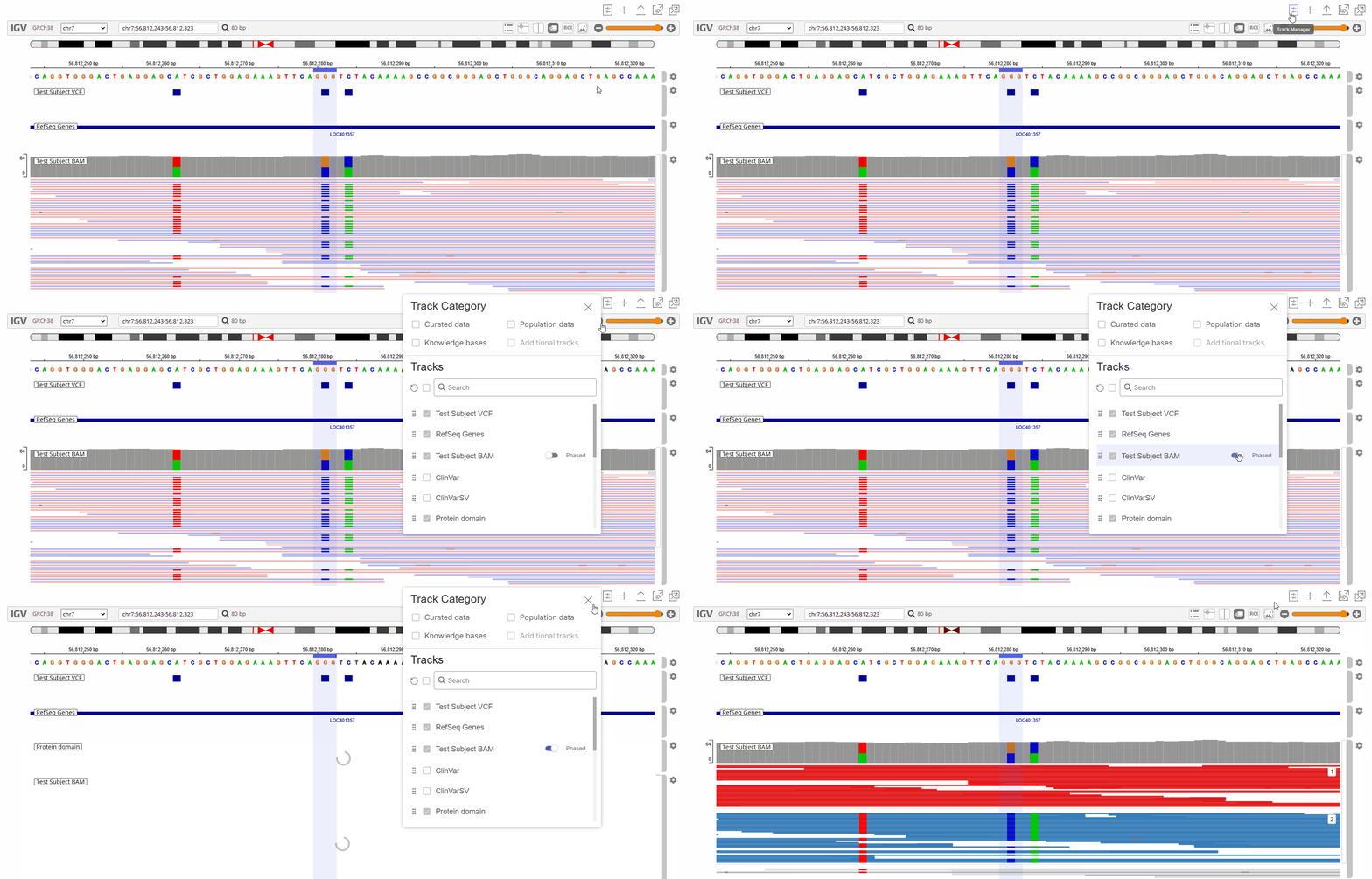
In phased view, the **Test Subject BAM** track groups reads by haplotype and colors reads by phase block. Use this view to compare read support across haplotypes.

* **Red reads** support haplotype 1.
* **Blue reads** support haplotype 2.
* **Gray reads** are not phased. The system cannot confidently assign them to haplotype 1 or haplotype 2.

<figure><img src="https://1131024994-files.gitbook.io/~/files/v0/b/gitbook-x-prod.appspot.com/o/spaces%2FGCW0DnLlE7QjoZPNmKIi%2Fuploads%2Fgit-blob-5572d12e7c17aeea10713f1da4ab792878290fd3%2Fimage%20(148).png?alt=media" alt=""><figcaption><p><strong>Test Subject BAM</strong> track in phased view, showing proband reads grouped by haplotype.</p></figcaption></figure>

#### Prerequisites for phased view

To use phased view, upload output from DRAGEN 4.5 or later Germline analysis for Illumina TruPath Genome data with the case VCF. The upload must include one or both of the following file sets:

* Phased BAM and BAI files for phased variants:
  * `<sample_name>.bam`
  * `<sample_name>.bam.bai`
* MRJD phased BAM file for phased small variants in paralogous regions called with the DRAGEN Multi-region Joint Detection caller:
  * `<sample_name>.mrjd.phased.bam`

### Switching between views

To switch from standard view to phased view, toggle on **Phased** next to **Test Subject BAM** in the [**Track Manager**](/emedgene/emedgene-analyze-manual/variant-visualization/variant-visualization-tool/track-manager/track-manager-v100.40.0+.md). To switch back to standard view, toggle off **Phased**.

<figure><img src="https://1131024994-files.gitbook.io/~/files/v0/b/gitbook-x-prod.appspot.com/o/spaces%2FGCW0DnLlE7QjoZPNmKIi%2Fuploads%2Fgit-blob-dc79d186a0a12f634f4e50e97152822147f2a61d%2Fswitch%20nonphased%20to%20phased.gif?alt=media" alt=""><figcaption><p>Enabling phased view for the <strong>Test Subject BAM</strong> track.</p></figcaption></figure>

## Test Subject BND (v100.41+)

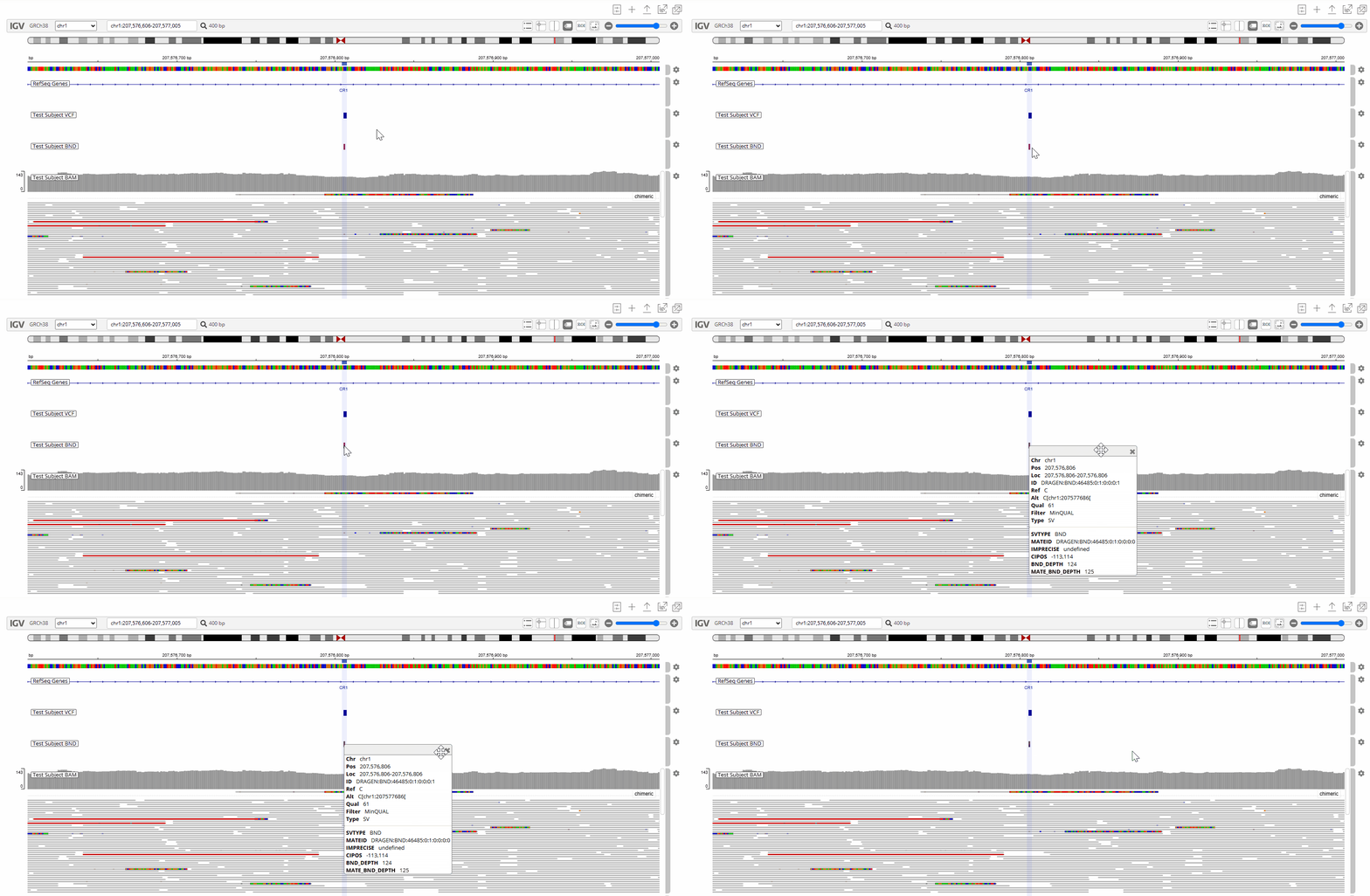
In v100.41 and later, the **Test Subject BND** track shows breakend records (BND) for the proband from the `sv.vcf` input file.

Select a breakend position in the track to open a popup with the variant details.

<figure><img src="https://1131024994-files.gitbook.io/~/files/v0/b/gitbook-x-prod.appspot.com/o/spaces%2FGCW0DnLlE7QjoZPNmKIi%2Fuploads%2Fgit-blob-59218bed2023fece79f7b6e0639c4b8cf533d4f5%2Fv41_visualization_tool_test_subject_bnd.gif?alt=media" alt=""><figcaption><p><strong>Test Subject BND</strong> track.</p></figcaption></figure>


---

# Agent Instructions
This documentation is published with GitBook. GitBook is the documentation platform designed so that both humans and AI agents can read, navigate, and reason over technical content effectively. Learn more at gitbook.com.

## Querying This Documentation
If you need additional information that is not directly available in this page, you can query the documentation by asking a question.

Perform an HTTP GET request on the following URL with the `ask` and `goal` query parameters:

```
GET https://help.bioinsight.illumina.com/emedgene/emedgene-analyze-manual/variant-visualization/variant-visualization-tool/visualization-tracks/default-tracks.md?ask=<question>&goal=<user_goal>
```

`ask` is the immediate question: it should be specific, self-contained, and written in natural language.
`goal` is what the user is ultimately trying to achieve, the reason they need the answer. Sharing it helps GitBook give you a better, more relevant answer. A goal is most helpful when it describes the outcome the user wants rather than restating the question. For example, with `ask=how do I create an API token`, a goal like `automate deployments from our CI pipeline` lets GitBook tailor the answer to that use case.

The response will contain a direct answer to the question and relevant excerpts and sources from the documentation.

Use this mechanism when the answer is not explicitly present in the current page, you need clarification or additional context, or you want to retrieve related documentation sections.