> For the complete documentation index, see [llms.txt](https://help.bioinsight.illumina.com/llms.txt). Markdown versions of documentation pages are available by appending `.md` to page URLs; this page is available as [Markdown](https://help.bioinsight.illumina.com/connected-analytics/project-web-ui/p-data/data-management.md).

# Data Management

{% hint style="info" %}
To prevent cost issues, you can not copy or move data to the workspace when the project **billing mode** is set to **tenant** and the **owning tenant** of the folder is **not the same as your tenant**.
{% endhint %}

## **Downloading Data**

**Single files** can be downloaded directly from within the UI.

* Select the checkbox next to the file which you want to download, followed by **Download > Browser Download > Download**.
* You can also download files from their details screen. Click on the file name and select Download at the bottom of the screen. Depending on the size of your file, it may take some time to load the file contents.

#### Schedule for Download

You can trigger an asynchronous download via service connector using the Schedule for Download button with one or more files selected.

1. Select a file or files to download.
2. Select **Download > Schedule download (for files or folders)**. This will display a list of all available connectors.
3. Select a connector and optionally, enter your email address if you want to be notified of download completion, and then select **Download**.

{% hint style="info" %}
If you do not have a connector, [create one](/connected-analytics/project-web-ui/p-connectivity/service-connector.md) and install it. You must then return to the file selection in step 1 to use it.
{% endhint %}

You can view the progress of the download or abort the scheduled download on the [Activity](/connected-analytics/project-web-ui/p-activity.md) page for the project.

## **Uploading Data**

Uploading data to the platform makes it available to analysis workflows and tools.

#### UI Upload

To upload data manually via the drag-and-drop interface in the platform UI, go to **Projects > your\_project > Data** and either

* Drag a file from your system into the *Choose a file or drag it here* box.
* Select the Choose a file or drag it here box, and then choose a file. Select Open to upload the file.

Your files are added to the Data page with status ***partial*** during upload and become ***available*** when upload completes.

{% hint style="info" %}
Do not close the Platform Core tab in your browser while data uploads.
{% endhint %}

<figure><img src="https://3193631692-files.gitbook.io/~/files/v0/b/gitbook-x-prod.appspot.com/o/spaces%2F-MWUqIqZhOK_i4HqCUpT%2Fuploads%2Fgit-blob-388be4ce9171cb98f667fde6f7f0e115256d17b7%2Fimage%20(101).png?alt=media" alt=""><figcaption></figcaption></figure>

{% hint style="info" %}
Uploads via the UI are limited to 5TB and no more than 100 concurrent files at a time, but for practical and performance reasons, it is recommended to use the CLI or [Service connector](/connected-analytics/project-web-ui/p-connectivity/service-connector.md) when uploading large amounts of data.
{% endhint %}

#### Upload Data via CLI

For instructions on uploading/downloading data via CLI, see [CLI Data Transfer](/connected-analytics/cli-access/cli-datatransfer.md).

***

## Copying Data

You can **copy** data from your project **to a different folder within the same project** or you can copy data **from another project to your current** project, provided you have the necessary access rights.

You can copy data **from a subfolder to a higher-level folder** to move data up one or more levels (folder/destination/source). You can not copy data from the source folder onto itself or onto a subfolder of the source folder as this would result in a loop.

{% hint style="info" %}
Copying large amounts of data can take considerable time. You can **monitor the progress** at **Projects > your\_project > Activity > Batch Jobs**.
{% endhint %}

#### Required Rights

The person copying the data must have the following rights:

<table><thead><tr><th width="184.33333333333331">Copy Data Rights</th><th>Source Project</th><th>Destination Project</th></tr></thead><tbody><tr><td>Within a project</td><td><ul><li>Contributor rights</li><li>Upload and Download rights</li></ul></td><td><ul><li>Contributor rights</li><li>Upload and Download rights</li></ul></td></tr><tr><td>Between different projects</td><td><ul><li>Download rights</li><li>Viewer rights</li></ul></td><td><ul><li>Upload rights</li><li>Contributor rights</li></ul></td></tr></tbody></table>

#### Restrictions

The following restrictions apply when copying data:

| Copy Data Restrictions     | Source Project                                                                                                         | Destination Project                                             |
| -------------------------- | ---------------------------------------------------------------------------------------------------------------------- | --------------------------------------------------------------- |
| Within a project           | <ul><li>No linked data</li><li>No partial data</li><li>No archived data</li></ul>                                      | <ul><li>No Linked data</li></ul>                                |
| Between different projects | <ul><li>Data sharing enabled</li><li>No partial data</li><li>No archived data</li><li>Within the same region</li></ul> | <ul><li>No linked data</li><li>Within the same region</li></ul> |

{% hint style="warning" %}
Data in the "**Partial**" or "**Archived**" state will be **skipped** during a copy job.
{% endhint %}

#### Copying Data

1. Go to the destination project for your data copy and proceed to **Projects > your\_project > Data > Manage > Copy From**.
2. Optionally, use the filters or search with the search box for the desired data.
3. Select the data (individual files or folders with data) you want to copy.
4. Select any meta data which you want to keep with the copied data (user tags, technical system tags or instrument information).
5. Select which action to take if the data already exists (overwrite existing data, don't copy or keep both the original and the new copy by appending a version number to the copied data).
6. Select **Copy** to copy the data to your project. You can see the progress in **Projects > your\_project > Activity > Batch Jobs** and if your browser permits it, a pop-up message will be displayed when the copy process completes.

<table data-view="cards"><thead><tr><th></th><th></th><th></th></tr></thead><tbody><tr><td><p><strong>Replace</strong></p><p>Overwrites the existing data. Folders will copy their data in an existing folder with existing files. Existing files will be replaced when a file with the same name is copied and new files will be added. The remaining files in the target folder will remain unchanged.</p></td><td></td><td></td></tr><tr><td><p><strong>Don't copy</strong></p><p>The original files are kept. If you selected a folder, <em>files that do not yet exist in the destination folder are added to</em> it. Files that already exist at the destination are not copied over and the originals are kept.</p></td><td></td><td></td></tr><tr><td><p><strong>Keep both</strong></p><p>Files have a number appended to them if they already exist. If you copy folders, the folders are merged, with new files added to the destination folder and original files kept. New files with the same name get copied over into the folder with a number appended.</p></td><td></td><td></td></tr></tbody></table>

{% hint style="info" %}
There is a difference in copy type behavior between copying files and folders. The behavior is designed for files and it is **best practice to not copy folders if there already is a folder with the same name in the destination location**.
{% endhint %}

#### Copy Status

* INITIALIZED
* WAITING\_FOR\_RESOURCES
* RUNNING
* STOPPED - When choosing to stop the batch job.
* SUCCEEDED - All files and folders are copied.
* PARTIALLY\_SUCCEEDED - Some files and folders could be copied, but not all. Partially succeeded will typically occur when files were being modified or unavailable while the copy process was running.
* FAILED - None of the files and folders could be copied.

To see the ongoing actions on data in the data overview (**Projects > your\_project > Data**), you can add the **ongoing actions** column from the column list with the three column symbol at the top right, next to the filter funnel. You can also consult the data detail view for ongoing actions by clicking on the data in the overview.

{% hint style="info" %}
Notes on copying data

* Copying data comes with an additional storage cost as it will create a copy of the data.
* Copying data from your own S3 storage requires additional configuration. See [Connect AWS S3 Bucket](/connected-analytics/web-ui-access/h-storage/s-awss3.md) and [SSE-KMS Encryption](/connected-analytics/web-ui-access/h-storage/s-awss3/s-sse-kms.md).
* On the command-line interface, the command to copy data is `icav2 projectdata copy`.
* Before copy and move operations are executed **on your own S3 storage**, a test is performed to verify the necessary operational rights. This can result in temporary test files remaining (for example when [IAM policy](/connected-analytics/web-ui-access/h-storage/s-awss3/iam-role-method.md#id-2-create-data-access-permission-aws-iam-policy) is not correctly set up for a versioned bucket). These files can safely be manually deleted from your S3 console.
  {% endhint %}

***

## Moving Data

You can move data within a project or between different projects to which you have access. If your browser allows notifications, a pop-up will appear when the move is completed.

* **Move From** is used when you are **in the destination** location.
* **Move To** is used when you are **in the source** location.

Before moving the data, pre-checks are performed to verify that the data can be moved and no currently running operations are being performed on the folder. Conflicting jobs and missing permissions will be reported.

Once the move has started, no other operation must be performed on the data being moved to avoid potential data loss or duplication. When modifying data at the source or destination during a move process, incomplete data transfers may occur with duplicate folders and files with different identifiers.. You can manually transfer any remaining data and delete duplicate files and folders afterward.

<details>

<summary>Move Synchronization issues</summary>

Changes to the date during move may cause the destination data to be unsynchronized between the object store (S3) and Platform Core. To address this, create a folder session on the destination directory's parent folder by using the following API steps: [Create Folder Session](https://ica.illumina.com/ica/api/swagger/index.html#/Project%20Data/createFolderUploadSession) and [Complete Folder Session](https://ica.illumina.com/ica/api/swagger/index.html#/Project%20Data/completeFolderUploadSession). Ensure that the move job is aborted before making the create and complete requests for the folder session.

</details>

{% hint style="warning" %}
Move jobs will fail if any data being moved is in the *Partial* or *Archived* state.
{% endhint %}

#### Required Rights

There are a number of rights and restrictions related to data move as this will delete the data in the source location.

| Move Data Rights           | Source Project                                               | Destination Project                                   |
| -------------------------- | ------------------------------------------------------------ | ----------------------------------------------------- |
| Within a project           | <ul><li>Contributor rights</li></ul>                         | <ul><li>Contributor rights</li></ul>                  |
| Between different projects | <ul><li>Download rights</li><li>Contributor rights</li></ul> | <ul><li>Upload rights</li><li>Viewer rights</li></ul> |

#### Restrictions

<table><thead><tr><th>Move Data Restrictions</th><th width="286">Source Project</th><th>Destination Project</th></tr></thead><tbody><tr><td>Within a project</td><td><ul><li>No linked data</li><li>No partial data</li><li>No archived data</li></ul></td><td><ul><li>No Linked data</li></ul></td></tr><tr><td>Between different projects</td><td><ul><li>Data sharing enabled</li><li>Data owned by user's tenant</li><li>No linked data</li><li>No partial data</li><li>No archived data</li><li>No externally managed projects</li><li>Within the same region</li></ul></td><td><ul><li>No linked data</li><li>Within same region</li></ul></td></tr></tbody></table>

#### Moving Data Constraints

* **1000 Maximum Items:** Up to 1000 items per move. Items include files and folders. Folders with subfolders and subfiles still count as one item.
* **Naming Conflicts:** Cannot move to a destination with existing files/folders of the same name.
* **Linked Data Restrictions:** Cannot move linked data move data to linked data.
* **Self Move:** Folders cannot be moved to themselves.
* **In-Transit Data:** Cannot move data that is being moved.
* **Region Restrictions:** No cross-region moves allowed.
* **Project Constraints:** No moves from externally-managed projects or externally-managed data.
* **Status Requirement:** Data must be in status available.
* **Ownership:** Data must be owned by the user's tenant for cross-project moves.
* **Destination Default:** If no target folder is selected, data moves to the root folder of the target project.

#### Move Data From

Move Data From is used when you are in the **destination** location.

1. Navigate to **Projects > your\_project > Data > your\_destination\_location > Manage > Move From**.
2. Select the files and folders which you want to move.
3. Select the **Move** button.

{% hint style="info" %}
Moving large amounts of data can take considerable time. You can **monitor the progress** at **Projects > your\_project > Activity > Batch Jobs**.
{% endhint %}

#### Move Data To

Move Data To is used when you are in the **source** location. You will need to select the data you want to move from to current location and the destination to move it to.

1. Navigate to **Projects > your\_project > Data > your\_source\_location**.
2. Select the files and folders which you want to move.
3. Select to **Projects > your\_project > Data > your\_source\_location > Manage > Move To**.
4. Select your target project and location.\
   You can create a new folder to move data to by filling in the "New folder name (optional)" field. This does NOT rename an existing folder. **To rename a folder**, you will need to create a new folder with the desired name, move the contents from the original folder into the new one, and then delete the original folder.
5. Select the **Move** button.

{% hint style="info" %}
Moving large amounts of data can take considerable time. You can **monitor the progress** at **Projects > your\_project > Activity > Batch Jobs**.
{% endhint %}

#### Move Status

* INITIALIZED
* WAITING\_FOR\_RESOURCES
* RUNNING
* STOPPED - When choosing to stop the batch job.
* SUCCEEDED - All files and folders are moved.
* PARTIALLY\_SUCCEEDED - Some files and folders could be moved, but not all. Partially succeeded will typically occur when files were being modified or unavailable while the move process was running.
* FAILED - None of the files and folders could be moved.

To see the ongoing actions on data in the data overview (**Projects > your\_project > Data**), add the **ongoing actions** column from the column list with the three column symbol at the top right, next to the filter funnel. You can also consult the data detail view for ongoing actions by clicking on the data in the overview.

{% hint style="info" %}
If you are only able to select your source project as the target data project, this may indicate that **data sharing** (**Projects > your\_project > Project Settings > Details > Data Sharing**) is not enabled for your project or that you do not have have upload rights in other projects.
{% endhint %}

{% hint style="info" %}
Before copy and move operations are executed **on your own S3 storage**, a test is performed to verify the necessary operational rights. This can result in temporary test files remaining (for example when [IAM policy](/connected-analytics/web-ui-access/h-storage/s-awss3/iam-role-method.md#id-2-create-data-access-permission-aws-iam-policy) is not correctly set up for a versioned bucket). These files can safely be manually deleted from your S3 console.
{% endhint %}

***

## Deleting

#### To manually delete files:

1. Select the checkbox next to the file or files to delete.
2. Select **Manage**, and then select **Delete** to remove the file. (event code ICA\_DATA\_106).
3. You will be presented with a dialog to confirm your choice.

<div align="center"><img src="https://3193631692-files.gitbook.io/~/files/v0/b/gitbook-x-prod.appspot.com/o/spaces%2F-MWUqIqZhOK_i4HqCUpT%2Fuploads%2Fgit-blob-ed2c36e8596a0353d5de7afebab71f0a9eb3a9c0%2Fimage%20(177).png?alt=media" alt=""></div>

If **Delete** is unavailable, one or more selected files cannot be deleted. For example, you cannot delete files shared with you.

#### Deleting at a specific time

To delete a file at specific timepoint, the key 'willBeDeletedAt' should be added or changed using the API call. (See [this](#api-example) example)

{% code overflow="wrap" expandable="true" %}

```
post /api/projects/{projectId}/data/{dataId}
```

{% endcode %}

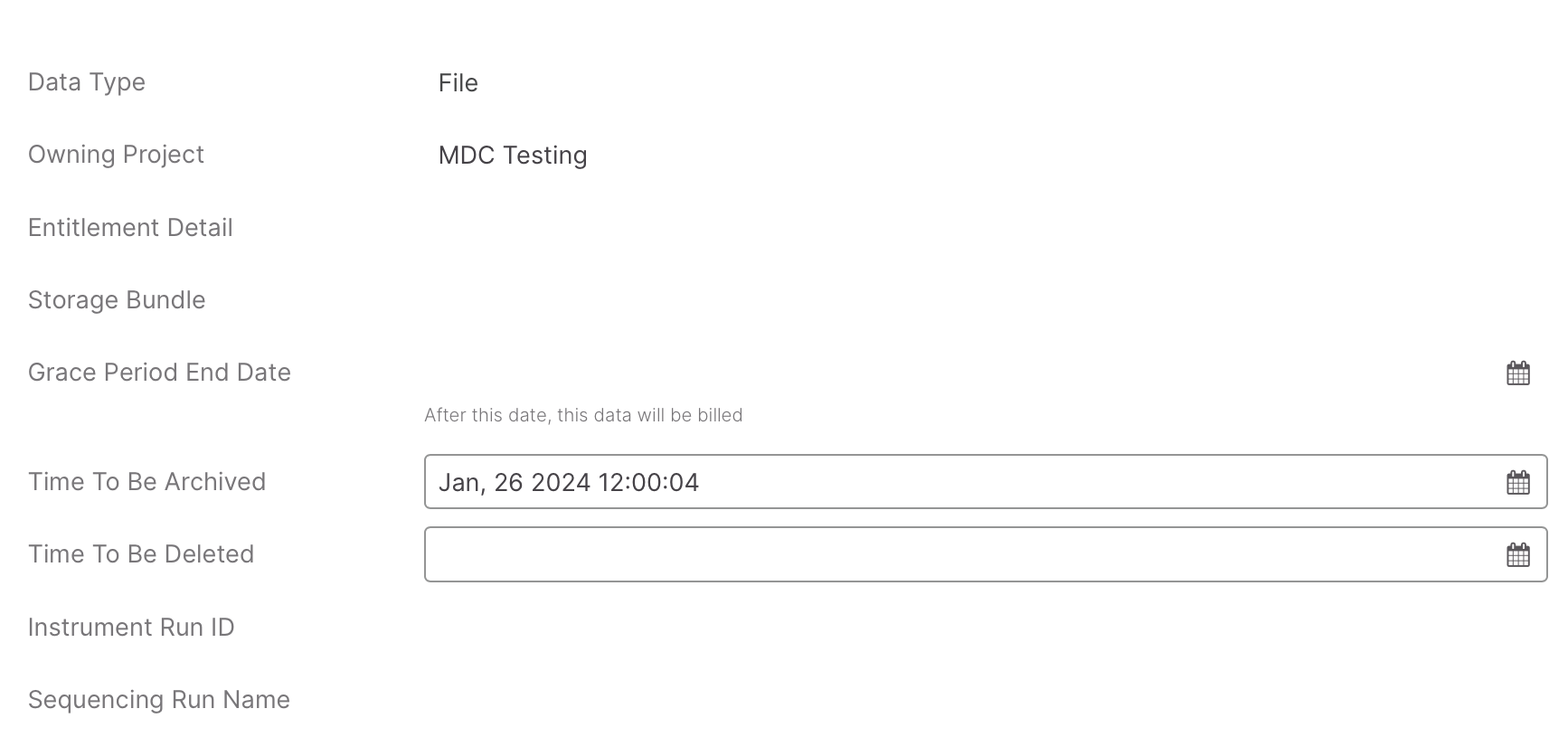
If running in the terminal, a successful run will finish with the message ‘200’. In the Platform Core UI, you can check the details of the file to see the updated values for ‘Time To Be Archived’ (willBeArchivedAt) or ‘Time To Be Deleted’ (willBeDeletedAt), as shown in the screenshot.

<figure><img src="https://3193631692-files.gitbook.io/~/files/v0/b/gitbook-x-prod.appspot.com/o/spaces%2F-MWUqIqZhOK_i4HqCUpT%2Fuploads%2Fgit-blob-328d036194ff43a4fa5ac4d3c7ebaf28f3a44d95%2FTimeToBeArchivedAt_changed_API.png?alt=media" alt="" width="375"><figcaption></figcaption></figure>

## Archiving and Unarchiving

### Archiving

When you need to **keep large amounts of data for a long time** and you do **not expect to access** it often, you can **save on storage costs** by archiving data. This moves the data from instantly-available S3 standard storage to [**Amazon S3 Glacier Deep Archive**](https://aws.amazon.com/s3/storage-classes/glacier/)**.** The trade-off here is that archived data is not directly accessible and needs to be unarchived first. Unarchiving data can take up to **48 hours** before the data becomes usable again. Consider archiving data when you will not access it for 3 months or more and don't need it to be instantly available. For more details on calculating the storage and retrieval cost, please see [official AWS documentation](https://docs.aws.amazon.com/AmazonS3/latest/userguide/glacier-storage-classes.html).

Archiving data is ideal for:

* **Regulatory compliance**: Retain genomic data, audit logs, records, or clinical data for years.
* **Research data preservation**: Store sequencing data or analysis outputs that may need to be revisited later.
* **Completed projects**: Archive project data which is no longer in use, but too valuable to be deleted.
* **Safety**: If you are not using the data anymore, but are not 100% sure it should be deleted, having it archived after use provides the option of secure storage at very low cost. Once it is determined the data is not needed, it can still be deleted, even in archived status.
* **Cost optimization**: Glacier storage is much cheaper than S3 Standard for infrequently accessed data.

### Unarchiving

When you unarchive data, it is restored in the next 48 hours from S3 Glacier Deep Archive and moved to Standard S3 storage where it remains available for further use. When you no longer actively need the data you can choose to archive it again or delete it.

If you perform file management directly on your S3 storage and restore data from Glacier Deep Archive that way, Platform Core listens to the restore event and then copies over the restored data to your Standard S3 storage for long-term usage.

{% hint style="info" %}
**This differs from how native restore works on Amazon S3 Glacier Deep Archive where data is only temporarily available in Standard S3 storage before it is returned to Glacier Deep Archive**.

If you do not want unarchived data to remain available for long term usage, contact Illumina support to disable copying the data to Standard S3 storage. Data will then only be available for as long as the time specified in the restoration request before moving back to Glacier Deep Archive. For Platform Core this is 5 days. See [AWS documentation](https://docs.aws.amazon.com/AmazonS3/latest/userguide/restoring-objects.html) for more information.
{% endhint %}

#### Restrictions

**Archived** files and folders will remain **visible**, but as their contents are in deep storage, the files can **not be moved or copied** or used as input for analyses and they will not be included in the copy or move job's expected file count.

You can **not download archived files** manually or with a service connector. The transfer will be marked as failed as archived files cannot be downloaded.

When attempting concurrent archiving or unarchiving of the same files, a warning will be shown to indicate that the currently running (un)archiving needs to finish first.

### Archiving and Unarchiving Data from the GUI

To manually archive files, go to **projects > your\_project > data**.

1. Select the checkbox next to the file or files to (un)archive.
2. Select Manage, and then select one of the following options:
   * **Archive** — Move the file or files to long-term storage.
   * **Unarchive** — Return the file or files from long-term storage.\
     Unarchiving can take up to 48 hours, regardless of file size. Unarchived files are identical to the original files before archival and can be used in analyses and move and copy operations.

### API endpoints

To archive data via the api, use the endpoint

{% code overflow="wrap" expandable="true" %}

```
post /api/projects/{projectId}/data/{dataId}:archive
```

{% endcode %}

To unarchive data via the api, use the endpoint

{% code overflow="wrap" expandable="true" %}

```
post /api/projects/{projectId}/data/{dataId}:unarchive
```

{% endcode %}

### API Example

To archive or delete files programmatically, you can use Platform Core's API endpoints as shown in the Python snippet below

{% code overflow="wrap" expandable="true" %}

```py
import requests
import json

from config import PROJECT_ID, DATA_ID, API_KEY

url_get="https://ica.illumina.com/ica/rest/api/projects/" + PROJECT_ID + "/data/" + DATA_ID

# set the API get headers
headers = {
            'X-API-Key': API_KEY,
            'accept': 'application/vnd.illumina.v3+json'
            }

# set the API put headers
headers_put = {
            'X-API-Key': API_KEY,
            'accept': 'application/vnd.illumina.v3+json',
            'Content-Type': 'application/vnd.illumina.v3+json'
            }

# Helper function to insert willBeArchivedAt after field named 'region'
def insert_after_region(details_dict, timestamp):
    new_dict = {}
    for k, v in details_dict.items():
        new_dict[k] = v
        if k == 'region':
            new_dict['willBeArchivedAt'] = timestamp
    if 'willBeArchivedAt' in details_dict:
        new_dict['willBeArchivedAt'] = timestamp
    return new_dict

# 1. Make the GET request
response = requests.get(url_get, headers=headers)
response_data = response.json()

# 2. Modify the JSON data
timestamp = "2024-01-26T12:00:04Z"  # Replace with the provided timestamp
response_data['data']['details'] = insert_after_region(response_data['data']['details'], timestamp)

# 3. Make the PUT request
put_response = requests.put(url_get, data=json.dumps(response_data), headers=headers_put)
print(put_response.status_code)
```

{% endcode %}

***

## Linking and Unlinking

Data linking creates a **dynamic** **read-only view** to the source data. You can use data linking to get access to data without running the risk of modifying the source material and to share data between projects. Linking ensures **changes to the source data are immediately visible** and **no additional storage** is required. You can recognise linked data by the **green color** and see the owning project as part of the details.

Since this is read-only access, you cannot perform actions such as deleting, adding, moving or (un)archiving on linked data as these actions require write access.

{% hint style="info" %}
**Linking data is only possible from the root folder of your destination project.** The action is disabled in project subfolders.

Linking a parent folder after linking a file or subfolder will unlink the file or subfolder and link the parent folder. So *root\linked\_subfolder* will become *root\linked\_parentfolder\linked\_subfolder*.
{% endhint %}

{% hint style="info" %}
Initial linking can take considerable time when there is a large amount of source data. However, once the initial link is made, updates to the source data will be instantaneous. You can monitor the progress at **Projects > your\_project > activity > Batch Jobs**.
{% endhint %}

<details>

<summary><strong>Migrating snapshot linked data. (linked before Platform Core release v.2.29)</strong></summary>

Before Platform Core version v.2.29, when data was linked, a snapshot was created of the file and folder structure. These links created a read-only view of the data as it was at the time of linking, but did not propagate changes to the file and folder structure. If you want to use the advantages of the new way of linking with dynamic updates, unlink the data and relink it. Since snapshot linking has been deprecated, **all new data linking done in Platform Core v.2.29 or later has dynamic content updates.**

</details>

### Linking data from another project.

1. Select **Projects > your\_project > Data > Manage**, and then select **Link**.
2. To view data by project, select the **funnel symbol**, and then select **Owning Project**. If you know to which project the data is linked to, you can choose to filter on linked projects. If you click on a folder, the folder will open so you can access the files, if you click on a file, the file details will be opened.
3. Select the checkbox next to the file or files to add.
4. Select **Link**.

Your files will be added and visible in the Data page.

<details>

<summary>Display Owning Project</summary>

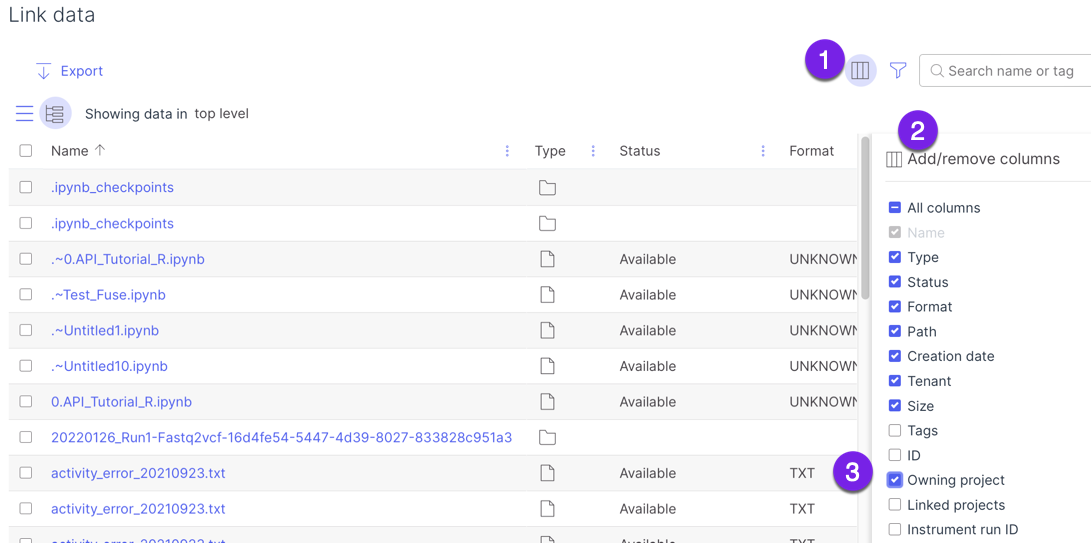
if you have selected multiple owning projects, you can add the owning project column to see which project owns the data.

1. At the top of the screen, next to the filer icon, select the **three columns**.
2. The Add/remove columns tab will appear.
3. Choose **Owning Project** (or Linked Projects)

   <figure><img src="https://3193631692-files.gitbook.io/~/files/v0/b/gitbook-x-prod.appspot.com/o/spaces%2F-MWUqIqZhOK_i4HqCUpT%2Fuploads%2Fgit-blob-1eeb8a76075c52546826222ca952dda016a5d8fe%2Flink_project_purple.png?alt=media" alt=""><figcaption><p>Owning Project Filter</p></figcaption></figure>

</details>

#### Linking Folders

If you link a **folder** instead of individual files, a warning is displayed indicating that, depending on the size of the folder, linking may take considerable time. The linking process will run in the background and the progress can be monitored on the **Projects > your\_project > activity > Batch Jobs** screen. From here you can see more details such as how many files have already been linked, by clicking the batch job.

#### Unlinking Project Data

To unlink the data, go to the root level of your project and select the linked folder or, if you have linked individual files separately, then you can select those linked files (limited to 100 at a time) and select **Manage > Unlink**. The progress can be monitored at **Projects > your\_project > Activity > Batch Jobs**.


---

# Agent Instructions
This documentation is published with GitBook. GitBook is the documentation platform designed so that both humans and AI agents can read, navigate, and reason over technical content effectively. Learn more at gitbook.com.

## Querying This Documentation
If you need additional information that is not directly available in this page, you can query the documentation by asking a question.

Perform an HTTP GET request on the following URL with the `ask` and `goal` query parameters:

```
GET https://help.bioinsight.illumina.com/connected-analytics/project-web-ui/p-data/data-management.md?ask=<question>&goal=<user_goal>
```

`ask` is the immediate question: it should be specific, self-contained, and written in natural language.
`goal` is what the user is ultimately trying to achieve, the reason they need the answer. Sharing it helps GitBook give you a better, more relevant answer. A goal is most helpful when it describes the outcome the user wants rather than restating the question. For example, with `ask=how do I create an API token`, a goal like `automate deployments from our CI pipeline` lets GitBook tailor the answer to that use case.

The response will contain a direct answer to the question and relevant excerpts and sources from the documentation.

Use this mechanism when the answer is not explicitly present in the current page, you need clarification or additional context, or you want to retrieve related documentation sections.